

I haven't written a line of code without AI in over a year.
I know that sounds dramatic, so let me back it up. Eighteen months ago, I had 6 personal repos on my Mac. Today I have 48. Thirty-five of those were created in the last twelve months. Twenty in the last three months alone. 5,042 GitHub contributions in the last year. You can see exactly when things changed in the shape of the graph.
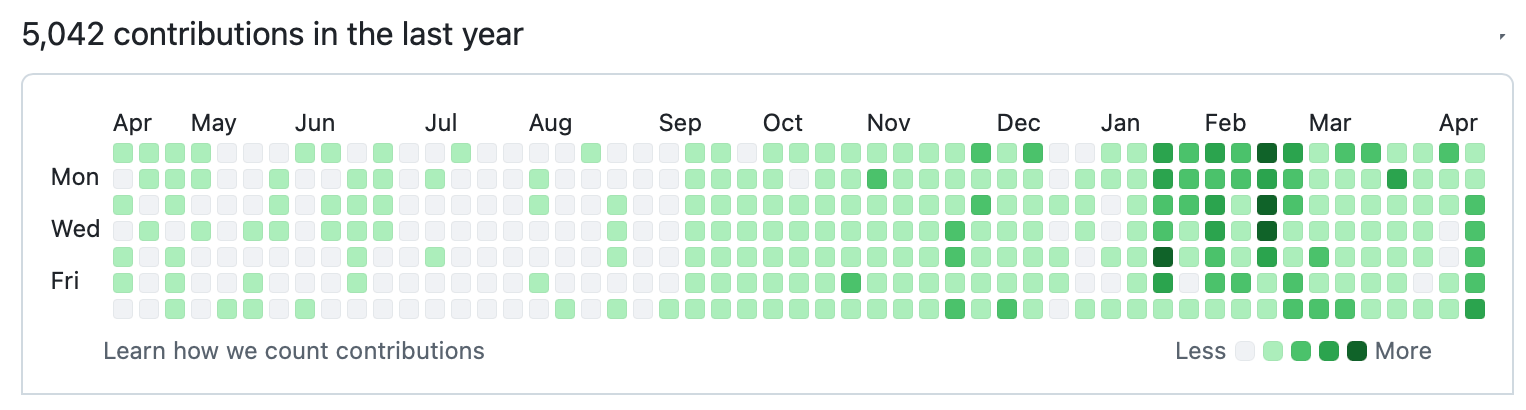
This isn't a productive streak or a sabbatical project. It's the new normal. When the distance between "I wonder if I could build that" and "I just pushed it" collapses from weeks to a single afternoon, you build a lot more stuff. A SvelteKit travel app. An Obsidian plugin. A Homebridge integration for my gas fireplace. A Fastmail MCP server. A Chief of Staff layer for my email. Whether I'm shipping something personal or working on projects at Microsoft, the pattern is the same. Every line of code has AI involved. Claude Code writes most of it. Cursor writes the rest.
Here's the overwhelming thing about AI right now: I'm simultaneously refining my own approach (learning new tools, adding new automations, tweaking what I built last week) while also watching what other people are doing and feeling incredibly behind every single day. Someone shares a workflow that makes mine look primitive. A new model drops and changes what's possible. A tool I spent a week configuring gets replaced by something better. This is the world we live in. The ground is always moving.
I've accepted that there's no "done" state. There's only the current snapshot. So that's what this post is: my basket of tools and tricks as they exist today. What's working, what I've learned, and the terminal skills I never expected to need but turned out to be essential. Two years ago, I was a product manager who used the terminal reluctantly and only when absolutely necessary. It turns out that AI-assisted development lives in the terminal. The best AI coding tools are CLIs. The configuration that makes them powerful lives in dotfiles. The automation that ties everything together runs in shell scripts. Learning the terminal wasn't optional. It was the prerequisite for everything else.
Recipe 1: The AI Tool Stack
Let me start with what's installed and what each tool is good at. This has changed three times in the last year, and it will probably change again. But here's where I've landed today.
Claude Code is the center of everything. It's Anthropic's CLI for Claude, and it's my most-used tool by a wide margin. My recent shell history has 399 Claude Code invocations (312 claude + 87 via my cc shortcut). Raw git commands? Three. Claude Code handles all my git operations through custom skills, so I almost never type git commit or git push directly.
I'm running Claude Code v2.1.110 with the Opus 4.7 model and a 1M token context window. That context window matters. It means Claude can hold an entire codebase in its head during a conversation, not just a single file.
Follow Boris Cherny if you want to stay on top of Claude Code. He works on it at Anthropic and posts the best real-world tips and updates I've seen.
Ghostty is my terminal emulator. Fast, GPU-accelerated, and the config travels with me via chezmoi (more on that in Recipe 4). IBM Plex Mono at 14pt, Apple System Colors that adapt to light and dark mode. Since Claude Code is a CLI, the terminal is where I actually write code. Ghostty is that terminal.
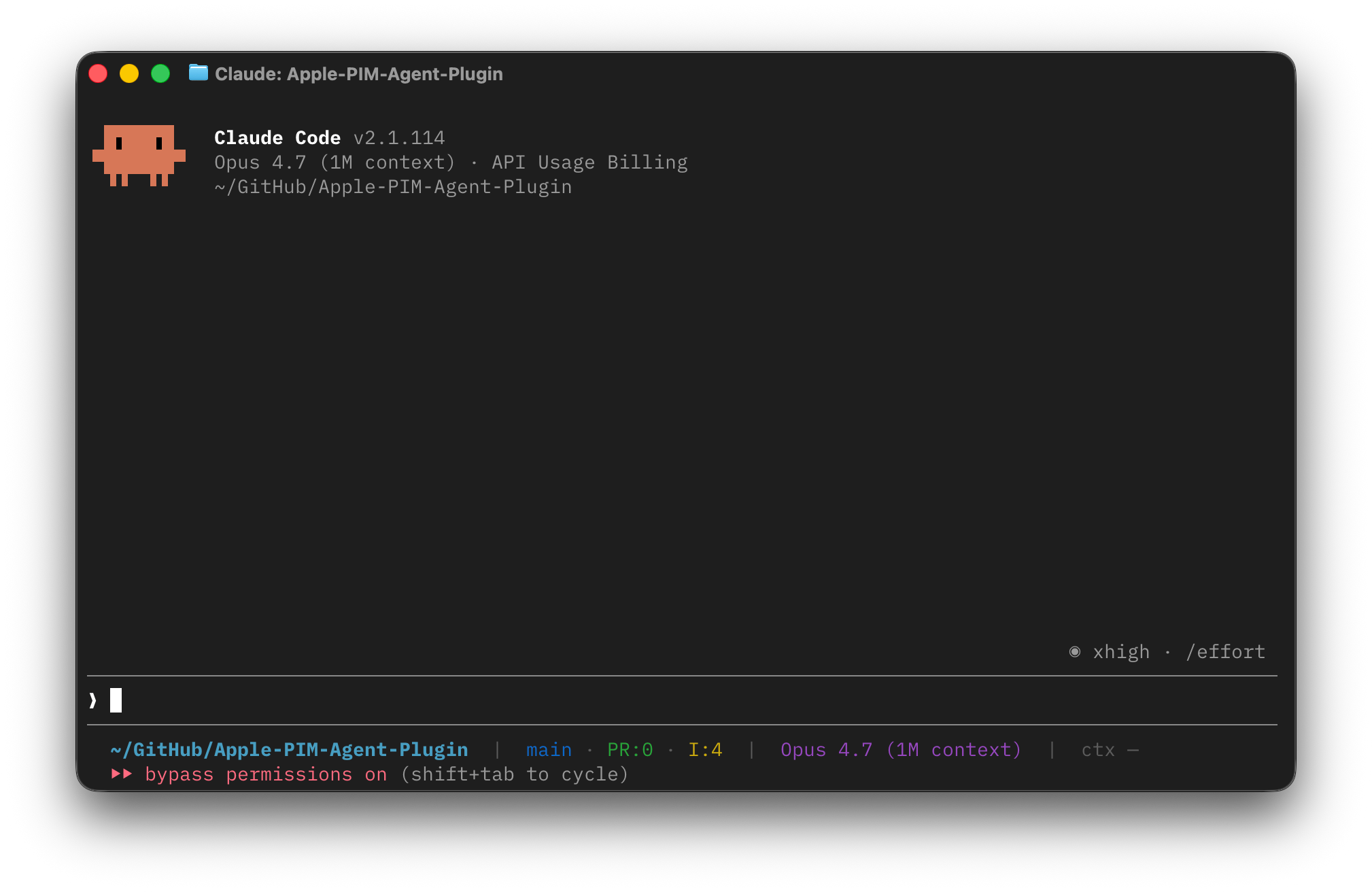
cmux is a tab and session manager that sits inside Ghostty. It handles tab lifecycle, keeps working directories straight across tabs, and makes it easy to park one Claude Code session per project. When I have five Claude Code sessions running in parallel (and I often do), cmux is what keeps them organized instead of a pile of anonymous terminal windows.
Cursor is my visual editor. It's a VS Code fork with AI built in, and when I need to look at code with my eyes (reading diffs, navigating a large file, visual debugging), Cursor is where I go. But I start most work in Claude Code and only switch to Cursor when I need to see something visually.
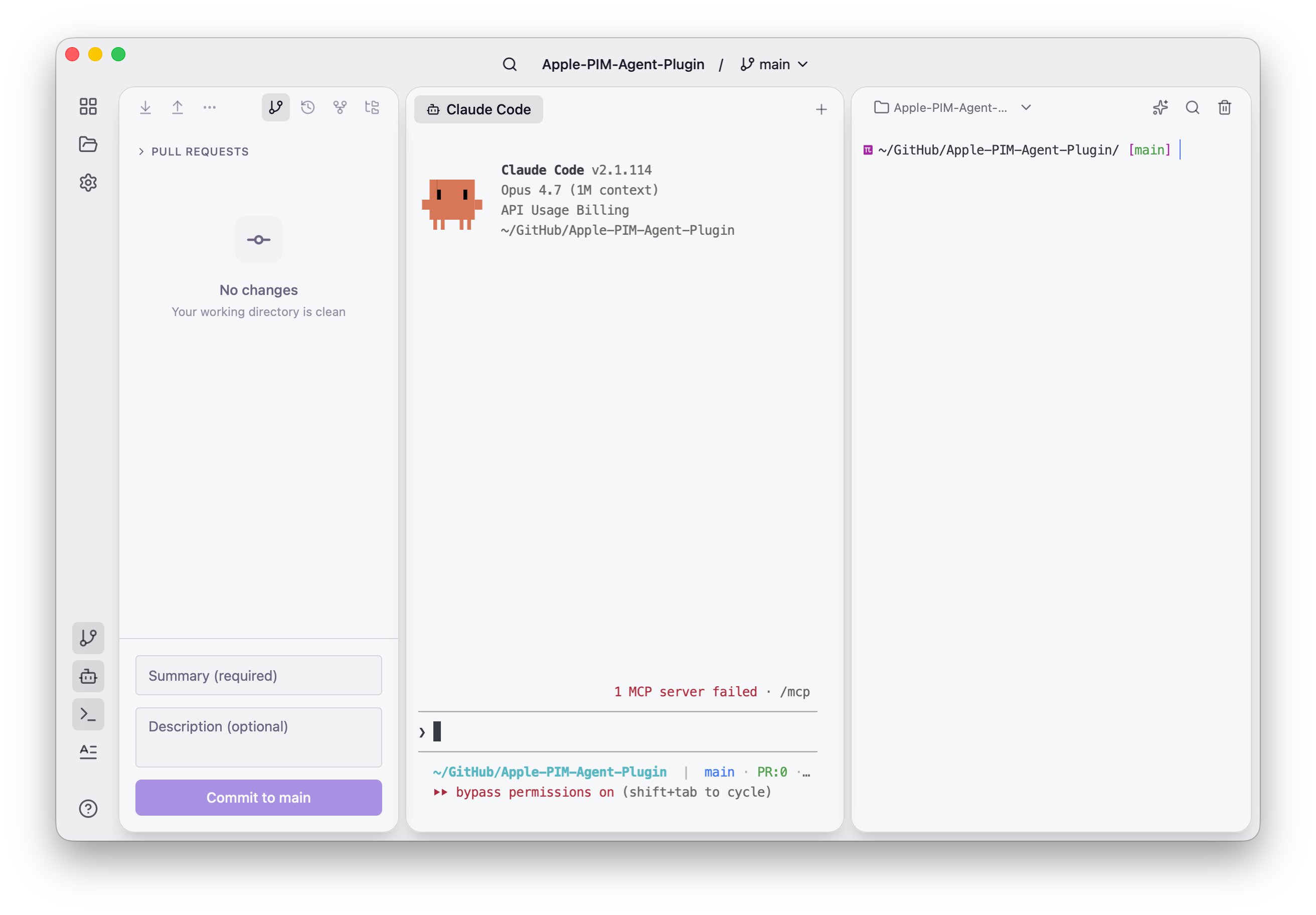
Orca deserves a mention here too. It's a Mac app that combines git, a terminal, and any AI coding assistant into a single window, built by Justin Miller. If you want a visual wrapper around a terminal coding tool like Claude Code, Orca is a great option.
Wispr Flow is voice-to-code dictation. I dictate natural language and it types code or text. Surprisingly useful when my hands are tired or I'm thinking through a problem out loud.
Recipe 2: The Feedback Loop
Here's what surprised me about Claude Code. It doesn't just help me with a task. It absorbs the task. I feed it one-off manual work, and the work turns into reusable skills, agents, and plugins that handle the same job on their own the next time. And every time after.
Here's the loop. I run into something tedious: filing an insurance claim, filing a tax document, triaging a batch of newsletters. I walk through it once with Claude Code. As I go, I tell it what it got right and what it got wrong. That feedback gets baked into a skill, a sub-agent, or a plugin. The next time the task shows up, it runs without me. I don't re-explain anything. My feedback is the training signal, and the artifacts it produces are permanent.
The accumulation is what makes this work. I have 78 project directories configured for Claude Code, and 32 of them carry persistent memory files between sessions. Each project learns its own patterns over time. And the system around it is extensible enough to keep up: plugins, custom agents, skills, hooks, and commands. I've built (or configured) a lot of them, but the important part is that I didn't sit down and architect any of this. It emerged from repetitive work. Each skill is a task I used to do by hand and now never think about.
The Numbers
16 active plugins that extend Claude Code with new capabilities
6 custom standalone agents for specialized tasks (Xcode builds, Cloudflare deploys, GitHub ops, SvelteKit development, test running, dependency auditing)
12 custom skills for specific workflows
22 custom commands for git operations, project shortcuts, and knowledge tools
3 hooks that run automatically (one injects my current Obsidian note into every prompt, one blocks file deletion to prevent accidents, one syncs my dotfiles when a session ends)
Let me break down the most important parts.
Recipe 3: Tuning Claude Code
Out of the box, Claude Code is great. With a handful of config tweaks, it gets into your muscle memory. Everything here lives in ~/.claude/settings.json and a status line script I wrote, both managed by chezmoi (so they deploy with the rest of my dotfiles).
The Status Line
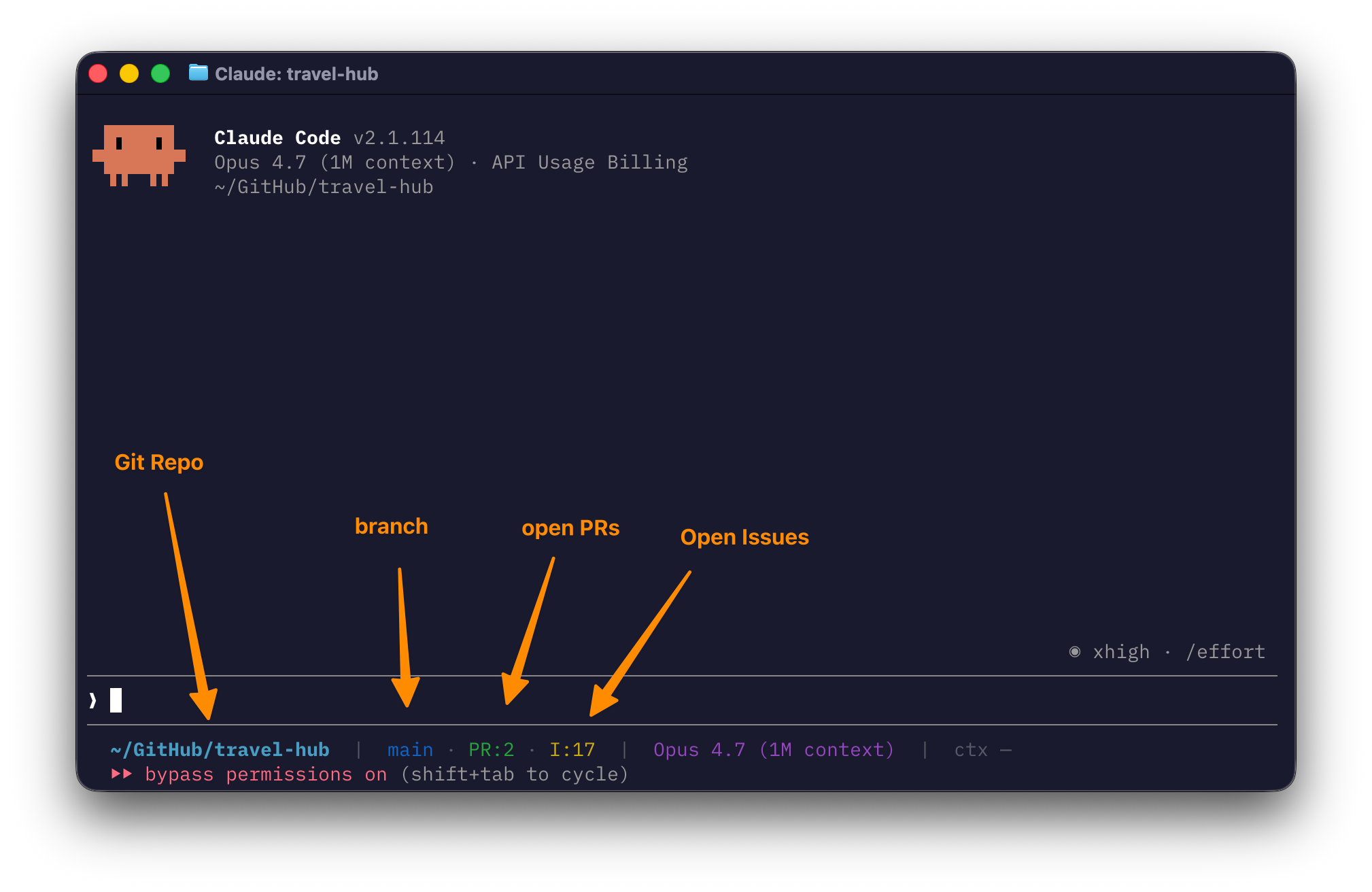
The bar at the bottom of Claude Code is fully configurable. By default it shows the current directory and the model. I wanted it to tell me a lot more. Here's what mine shows:
Current path with
~substitution for homeGit branch with a
✗marker if the working tree is dirtyOpen PR number if the current branch has one (e.g.
#42)Repo-wide open PR and issue counts pulled from the GitHub CLI
Model name
Context window usage with a progress bar
The whole thing is driven by a bash script at ~/.claude/statusline-command.sh, wired up in settings.json:
{
  "statusLine": {
    "type": "command",
    "command": "bash $HOME/.claude/statusline-command.sh"
  }
}
Claude Code passes a JSON object into the script's stdin every turn (current directory, model, context usage). The script shells out to git and gh for the rest. The PR and issue counts use a stale-while-revalidate pattern: read the cached values immediately, kick off a background refresh if the cache is older than 5 minutes. The status line never blocks, even when GitHub is slow.
The payoff is subtle but real. At a glance I know what repo I'm in, whether I have uncommitted work, whether there's a PR open, how many issues are waiting, which model I'm running, and how much of the context window I've burned. I rarely have to leave the session to check any of that separately.
Other Settings Worth Knowing
A few knobs in ~/.claude/settings.json that changed the daily feel of Claude Code for me:
model: opus[1m]. The 1M-token context window. It's what lets Claude hold an entire codebase in its head.permissions.defaultMode: bypassPermissions. YOLO mode. Claude doesn't prompt me before every tool call. I trust the skills and hooks (especially therm-blocking one in Recipe 7) to catch the dangerous stuff, and I'd rather trade a few interrupt points for flow.skipDangerousModePermissionPrompt: trueandskipAutoPermissionPrompt: true. Kills the "are you sure?" modals that would otherwise break concentration.permissions.additionalDirectories: ['/tmp', '/private/tmp']. Lets Claude work with scratch files outside the project directory without asking. Useful for downloaded PDFs, shell pipelines, and one-off scripts.outputStyle: Explanatory. Tells Claude to explain why something works as it goes, not just what it did. I learn faster this way, and it's the setting that powers the "Insight" blocks you see in my sessions.enabledPlugins. The list of plugins that load for every session. Mine is a mix of official plugins (pr-review-toolkit, code-simplifier, frontend-design) and my own (chief-of-staff, apple-pim, rename-agent).
The combined effect: Claude Code stops feeling like a sandboxed CLI and starts feeling like a terminal companion that already knows my environment, my preferences, and my guardrails.
Recipe 4: The Development Environment (and Why It's Portable)
This is the recipe I wish someone had given me two years ago. It's also the one that required me to actually learn the terminal, which I resisted for longer than I'd like to admit.
Every customization I've described so far (Claude Code plugins, agents, skills, hooks, shell config, secrets) lives in version-controlled dotfiles. If my laptop got stolen tomorrow, I could recreate the entire setup on a new machine in under an hour. That portability is the whole point. And it's something I only understood after AI taught me how dotfiles work in the first place. I'd go into a conversation with Claude saying "I want to sync my configs across machines, explain it to me like I'm learning," and it would walk me through chezmoi, age encryption, and launchd timers. Not just give me commands to paste, but explain the why. That's what made it stick.
chezmoi: The Foundation
chezmoi is the tool that makes everything portable. It manages all my configuration files (shell config, git config, SSH keys, Claude Code settings, terminal config, everything) in a private GitHub repo. The setup on a new machine is one command:
chezmoi init --apply omarshahine/dotfilesThat pulls down every config file, puts it in the right place, and my entire environment is live. But here's the critical part: secrets. I have 30+ API keys, tokens, and credentials that need to travel with my dotfiles but can't be stored in plaintext on GitHub. chezmoi solves this with age encryption. All secrets live in a single encrypted file that gets decrypted at deploy time with a key I keep on each machine. The encrypted blob is safely committed to git. The decrypted .secrets.env file gets sourced by my shell on every startup, so every tool has access to the credentials it needs.
I also have automation that keeps this in sync. A macOS launchd timer runs every 30 minutes to re-add changed files, commit, and push. Plus a Claude Code hook fires on every session exit to do the same thing. My dotfiles are always current, always backed up, always encrypted.
Ghostty + Zsh + Oh My Zsh
My terminal is Ghostty, a fast, GPU-accelerated terminal emulator. IBM Plex Mono at 14pt, Apple System Colors theme that adapts to light and dark mode. The config is managed by chezmoi, so it deploys automatically on new machines.
Under that is Zsh with Oh My Zsh, which is where the productivity multipliers live. The plugins I actually use daily:
autojump (via
j): learns which directories you visit most. Typej traveland it jumps to~/GitHub/travel-hubbecause that's where I go most often when I type "travel." It builds a frequency database over time, so the more you use it, the smarter it gets.git: adds dozens of aliases (
gstforgit status,gcoforgit checkout, etc.) and tab completion for branches, remotes, and tags.1Password: integrates 1Password CLI with the shell for secure credential lookups.
copypath: copies the current directory path to clipboard. Small but I use it constantly.
All of these are declared in my .zshrc and deploy via chezmoi. New machine, same muscle memory.
The cc Function: Project Launcher
This is one of my favorite hacks. I have a shell function called cc that maps short project names to repository paths, sets a per-project terminal background color, and launches Claude Code:
cc travel    → opens Claude Code in ~/GitHub/travel-hub (dark blue background)
cc plugins   → opens ~/GitHub/omarshahine-plugins (dark green)
cc fastmail  → opens ~/GitHub/fastmail-mcp-remote (dark teal)
cc omarknows → opens ~/GitHub/OmarKnows (dark red)
The background colors are the key. When I have five Claude Code sessions running simultaneously (and I often do), I can instantly tell which project I'm in by the tab color. It sounds small, but visual differentiation across parallel sessions saves real time and prevents costly mistakes like committing to the wrong repo.
The function also supports cc travel resume to continue the last session, which maps to Claude Code's --resume flag. I use this dozens of times a day.
What chezmoi Actually Manages
To give you a sense of scope, here's what deploys automatically to any new machine:
Category | What's Managed
Shell | .zshrc (Oh My Zsh config, plugins, the cc function, PATH, aliases), .zprofile
Git | .gitconfig (SSH signing, credential helpers, LFS, Azure DevOps), .gitignore_global
Terminal | Ghostty config (font, theme, cursor, tabs, clipboard)
SSH | SSH config with host definitions and key management
Secrets | Age-encrypted .secrets.env (30+ API keys, tokens, credentials)
Claude Code | Complete .claude/ directory: settings, 6 agents, 12 skills, 22 commands, 3 hooks, plugin configs
MCP Servers | Global .mcp.json (Cloudflare, Fastmail, etc.)
Scripts | Custom CLI tools in .local/bin/ (check-setup, fresh, plugin-data)
That last row is worth calling out. I have a script called check-setup that validates the entire development environment: Homebrew packages, Node, Python, Xcode, git, chezmoi, SSH keys. Run it after a fresh deploy and it tells you exactly what's missing, with --fix to auto-install everything. It's the safety net that makes new machine setup boring instead of stressful.
Seven Language Runtimes
My development spans a lot of languages: Swift 6.3 for iOS/macOS apps, Node 25 and SvelteKit for web apps on Cloudflare, Python 3.14 for scripting and data work, Go 1.26 for CLI tools, Zig 0.15 and .NET 8 for specific projects, and Ruby 3.1 for legacy tooling. Claude Code moves fluently between all of them in the same session. I can go from debugging a Swift build error to deploying a Cloudflare Worker to writing a Python data pipeline without switching tools.
Recipe 5: Remote Development (Coding From My Phone)
Everything I've described so far assumes I'm sitting at my Mac. But I travel a lot, and one of the things I learned the hard way is that if your setup only works at your desk, you'll lose momentum every time you leave it. Here's the recipe for taking everything with you.
Tailscale is the foundation. It's a mesh VPN built on WireGuard that connects all my devices into a private network. My Mac at home, my Mac at the office, my iPhone, my iPad. They all see each other as if they're on the same local network, regardless of where I actually am. No port forwarding, no dynamic DNS, no firewall configuration. Install it, sign in, done. It's the simplest networking tool I've ever used.
SSH + mosh is how I connect. Once Tailscale makes my home Mac reachable, I SSH into it from wherever I am. For flaky connections (airplane wifi, hotel wifi that drops every 20 minutes), I use mosh instead of plain SSH. Mosh survives network changes and laptop sleeps. You can close your laptop lid, move to a different wifi network, open it back up, and your session is still there. No reconnecting, no lost state.
Moshi is what makes this work from my iPhone. It's a terminal app for iOS that supports SSH and mosh, built by Odd Joel, and it's genuinely good. I can SSH into my home Mac from my phone, launch Claude Code, and have a full AI development session from my pocket. I've triaged email, reviewed pull requests, and even shipped small fixes from my phone while waiting for a flight. It's not how I'd write a new feature from scratch, but for quick tasks and monitoring, it's surprisingly capable.
Claude Code Remote is the newest piece. Anthropic offers a web-based version of Claude Code that connects to a remote machine over SSH. It gives you the full Claude Code interface in a browser tab, with all your plugins, agents, and skills intact (because they live on the remote machine in your dotfiles). I use this occasionally when I'm on a device where I can't install the CLI but still want the full experience.
The key insight is that because everything is in my dotfiles (chezmoi, remember?), any machine I SSH into has my complete setup. The remote machine isn't a stripped-down fallback. It's the real thing. Same Claude Code plugins, same agents, same skills, same secrets (decrypted locally by age). Whether I'm at my desk or on my phone in a taxi, I'm working in the same environment.
Recipe 6: The Knowledge Layer (Why I Switched to Obsidian)
I'm a recent Obsidian convert, and the reason is AI. This is one of the recipes that's newest in my cookbook, which means it's also the one most likely to change.
For years I bounced between note-taking apps. Apple Notes for quick captures. Craft for polished documents. Bear for markdown. Day One for journaling. Each was good at its thing, but none of them talked to each other, and none of them could talk to my AI tools.
Obsidian changed that equation because of one fundamental design decision: everything is just markdown files in a folder. No proprietary database. No cloud sync lock-in. Just .md files on disk. That matters because LLMs are experts at reading and writing markdown. It's the format they're trained on, the format they output most naturally, and the format that requires zero translation between human and machine. When your knowledge base is markdown, every AI tool on your machine can read it, search it, and contribute to it natively.
That insight is what made me go all-in. I now have multiple Obsidian vaults: one for personal knowledge (Lobster, which is also where my Claude Code configuration lives), one for travel planning with trip notes and restaurant research, and for this newsletter. All of them are just folders of markdown files that Claude Code can access directly.
Most of the AI integration runs through one plugin.
Claude Sidebar. If you install one thing from this recipe, make it this. Derek Larson built it, and it embeds a full Claude Code terminal inside an Obsidian sidebar panel. Not an API chat wrapper. The actual CLI, running inside the editor where I work. That's the move. The features I use daily:
Multiple Claude tabs in the sidebar. One Claude Code session per project, side by side, without leaving Obsidian.
Right-click any folder → "Open Claude here." Starts Claude with that folder as the working directory. I use this constantly.
Toggle focus: Editor ↔ Claude. One keyboard shortcut hops between writing in the note and talking to Claude.
Send file path or selection to Claude. Highlight a snippet, send it, ask a question about it.
Multi-backend. Claude Code by default, but it also runs Codex, OpenCode, and Gemini CLI if you want to try other models.
Resume last conversation. Picks up where you left off with
--continue.
I'm writing this post in Obsidian right now with Claude Sidebar open next to the draft. It can see the post, the style guide, every OmarKnows post I've ever published, my shell history, my git repos, and my dotfiles. When I said "draft me a blog post about my AI setup," it pulled from all of that and wrote the first version directly into this note.
Automatic context injection. On top of Claude Sidebar, I have a Claude Code hook that detects which note I have open and injects it into every prompt. If I'm looking at trip notes for an upcoming Italy trip, Claude already knows the dates, the hotels, the flight details. I don't explain anything. It just sees what I see.
My own plugins. I've shipped three Obsidian plugins. obsidian-chat is an agentic AI chat assistant that reads, edits, and creates notes through natural conversation. It's a lighter-weight companion to Claude Sidebar: pure chat, no terminal, when you want AI help without the full CLI experience. obsidian-share publishes any note as a public web page at share.shahine.com with one command. dump-llm-wiki takes a URL, podcast, or block of text and drops it into a cross-linked knowledge base that AI maintains automatically.
The supporting cast. Beyond AI, a handful of community plugins do the heavy lifting on knowledge organization. Dataview treats the vault as a database. Tasks handles recurring and queryable task management. Numerals evaluates math inline (I use it for travel budgets). Natural Language Dates lets me type @next friday and get a parsed date. None of these need AI. Together with the ones that do, they turn a folder of markdown files into something that feels alive.
The result is a feedback loop. Email comes in, gets triaged by Claude Code, relevant info flows into Obsidian notes, travel data syncs to Travel Hub, and the whole system stays in sync. The apps I used before were better at individual things (Craft's document layout is gorgeous, Bear's tagging is elegant), but none of them could be the connective tissue between all my AI tools the way Obsidian can. Markdown files in a folder turns out to be a superpower when your entire workflow runs on AI.
What Two Years of AI-Assisted Development Looks Like
To give you a sense of the cumulative output, here are my most active repos by Claude co-authored commits:
Repo | Claude Commits | What It Is
travel-hub | 381 | SvelteKit travel management app
Lobster | 216 | Backup repo for Lobster, my personal AI agent
omarshahine-plugins | 191 | Private plugin marketplace (16 plugins)
dotfiles | 161 | Dotfiles and config
fastmail-mcp-remote | 112 | Fastmail MCP server for email
Apple-PIM-Agent-Plugin | 99 | Native macOS calendar/contacts/reminders
HomeClaw | 81 | HomeKit smart home control via MCP
obsidian-chat | 75 | Agentic AI chat plugin for Obsidian
porsche-connect | 58 | Porsche Connect CLI
I wrote about the travel-hub build in detail over on OmarKnows AI. If you're curious how a 381-commit production SvelteKit app gets built almost entirely through Claude Code conversations, that's the post.
Recipe 7: Security (The Non-Negotiable Parts)
This is the one recipe I don't tinker with casually. A system like this only works if the security model is solid. I'm giving Claude Code access to my email, my calendar, my financial tools. That means the security has to be right. I've made mistakes here (a leaked token in a config file, a secret that ended up in conversation history) and each one taught me something.
Secrets management. Every API key and credential is encrypted with age encryption via chezmoi. They deploy to a .secrets.env file that's sourced by my shell. Claude Code has a strict policy: never read that file directly, never print secret values into conversation history, never pass secrets as CLI arguments. If a secret leaks into a session, I rotate it immediately.
Commit signing. All commits are signed with Ed25519 SSH keys. Claude Code automatically adds a Co-Authored-By tag to every commit it touches, so there's a clear audit trail of AI involvement.
Destructive action prevention. A PreToolUse hook catches any rm before it runs. The script reads the JSON tool input, greps for rm as a standalone command (including sudo rm, chained && rm, and xargs rm), and returns exit code 2 with a message telling Claude to use trash instead:
if echo "$COMMAND" | grep -qE '(^|[;&|]+\s*|sudo\s+|xargs\s+)rm\b'; then
  echo "BLOCKED: Use 'trash' instead of 'rm'." >&2
  exit 2
fi
Everything that would have been deleted goes to the macOS Trash instead, where I can recover it if something important got swept up. This has saved me more than once from a Claude Code session that got a little too enthusiastic about cleanup.
No macOS Keychain. I manage all credentials through chezmoi and the GitHub CLI. One system, one source of truth.
Where to Start (If This All Sounds Like Too Much)
If you've read this far and you're thinking "this is insane, I just want to code faster," I get it. I felt the same way when I started. Here's the beginner's version of this cookbook.
Start with Claude Code, GitHub Copilot CLI, Codex. Install it, point it at a project, and start talking to it. Ask it to explain your codebase. Ask it to write a test. Ask it to fix a bug. Get comfortable with the conversational workflow. That alone will change how you work.
Add a CLAUDE.md file to your project. This is a markdown file at the root of your repo that gives Claude Code persistent context about the project. Coding conventions, architecture decisions, deployment notes. It reads this file at the start of every session. Think of it as onboarding documentation for your AI pair programmer.
Learn the skill system. skills are like slash commands. /commit creates a git commit. /git-pr creates a pull request. You can build your own. This is where the customization starts.
Then explore plugins. The plugin ecosystem is where Claude Code goes from "coding assistant" to "personal operating system." The Obsidian plugin, the Substack plugin, the Apple PIM plugin. Each one opens up a new category of tasks.
Finally, build your own. The real power is when you start building plugins and skills for your specific workflows. My setup didn't happen overnight. It grew organically over two years as I kept finding new things to automate. Each skill or plugin started as a task I got tired of doing by hand.
You don't need to build what I've built. The tools are modular. Pick up the pieces that solve problems you actually have.
The Cookbook Is Never Done
I want to end where I started: I constantly feel behind.
Every week there's a new model, a new plugin framework, a new tool that makes something I built last month feel obsolete. I rebuilt my secrets management three times before landing on chezmoi + age. My email triage setup has gone through four major rewrites. The cc function started as a one-liner and grew into 50 lines of shell script. This is what AI-assisted development actually looks like. Not a polished, finished system, but a living, evolving practice that you're always refining.
Two years ago, I was a product manager who could kind of code and was afraid of the terminal. AI didn't just help me write code. It taught me the terminal. It taught me dotfiles, SSH tunneling, shell scripting, launchd timers, age encryption. Every time I needed something, I'd ask Claude to explain it, and it would. Not just the command, but why it works, what the alternatives are, and what could go wrong. That's how I went from copy-pasting Stack Overflow answers to maintaining 48 repos with a custom plugin ecosystem.
The 100% AI-assisted stat isn't about me doing less work. It's about me doing more work, faster, with higher quality. And honestly, it's about me doing work I never could have done at all. I didn't know how to build a Cloudflare Worker two years ago. Or a SvelteKit app. Or an cli. Or an Obsidian plugin. Now I maintain all of those, and Claude Code was my teacher for every single one.
If you take one thing from this post, let it be this: you don't need to understand everything before you start. Just pick one recipe. Install Claude Code, point it at a project, and start a conversation. The rest of the cookbook will write itself as you go.
I'm still writing mine.
Feel free to check out my GitHub Page where you can download and learn more about my projects. If you like one please leave a star!
Another great post, Omar! I'm getting going myself and one thing I am not sure about is how OpenClaw fits into your set of tools. Are you using OpenClaw exclusively for Lobster and the agent messaging/chat front end?
This is a really amazing and dense post. In all your spare time you should create detailed walkthroughs on how to set this up. Yes, I know it’s constantly changing so that’s a ton of work. That said, it would be great value to us Product folks that have never really been coders.
Second thought, maybe I just hand your post to Claude and have it walk me through set up step by step.