

🖥️ Apps first, data second
I have set up a lot of Macs. For many years the ritual has been the same: plug the old machine into the new one, launch Migration Assistant, go make coffee, and come back to a computer that works but carries every bit of sediment from the last four years. Caches I have never opened. Login items for apps I deleted in 2022. A Homebrew install two major versions behind.
My new MacBook Pro arrived a few weeks ago (M5 Max, 18-core, 128 GB) and it was replacing my daily driver, not joining it. I wanted a genuinely clean machine on the other side.
So I handed the whole project to my Agent and worked alongside it. It took about a day. It worked. And it produced a repeatable process, which is really what this post is.
First, should you even do this?
Migration Assistant is good and I am not going to talk you out of it. If you want the new Mac to be the old Mac, use it, and skip the rest of this post. Genuinely. That is the right answer for most people.
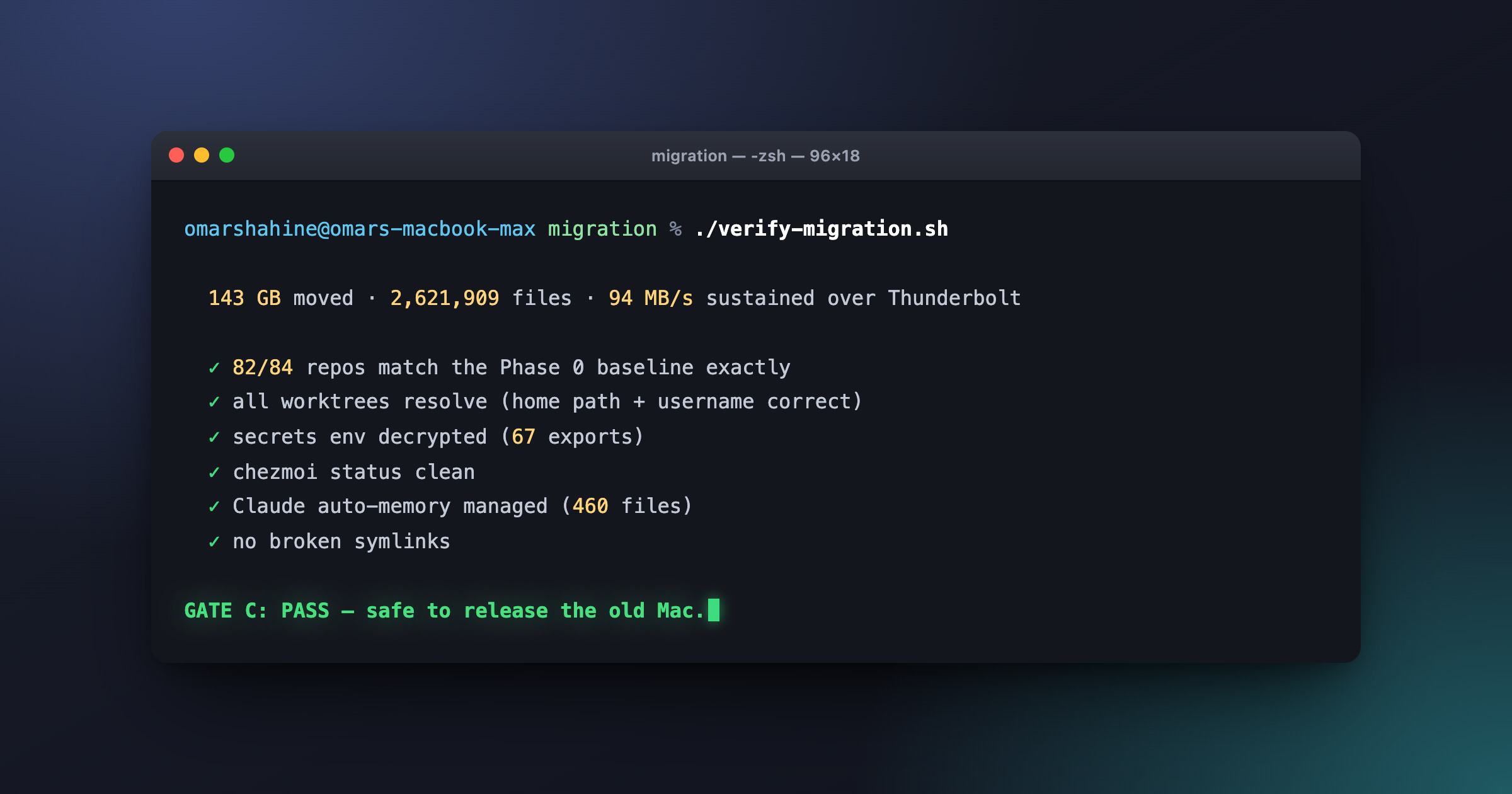
What I wanted was different, and the numbers explain why. My home folder is about 400 GB. Of that, 309 GB is ~/Library: model weights, browser profiles, Xcode derived data, app caches, and state I will never miss. Once I excluded it, the pile that actually mattered came to 143 GB across 2.6 million files.
That is the case for doing it by hand. You get to leave 250 GB of sediment behind.
The one rule: apps first, then data
This is the part I would have gotten wrong on my own.
Apps write their configuration when they first launch, and again when they quit. If you restore an app’s settings before the app exists, the app installs fresh, writes defaults over your restored file, and you never notice until three days later when a keyboard shortcut is missing.
So the order is strict. Install every app. Launch every app. Verify every app. Only then move a single byte of data.
I built the whole thing around three checkpoints:
Gate A: pre-flight is done on the old Mac. Inventory captured, cloud services confirmed syncing, every repo pushed.
Gate B: every app and command line tool works on the new Mac. No data moves until this passes.
Gate C: the new Mac’s state matches the baseline. Only now can the old Mac be wiped.
Gate B is the one that saves you. It is also the one you will want to skip.
Phase 0: take inventory before you touch the new Mac
Everything downstream depends on this, and it is the step everyone skips.
My Agent walked my old Mac and wrote out eleven manifests: a Brewfile (71 formulae, 22 casks, 12 taps), an App Store list (46 apps), every installed bundle in /Applications (112 of them), the npm, Go, Cargo, and uv packages, everything in ~/.local/bin, every scheduled background job, and a JSON snapshot of all 86 git repos recording each one’s branch, uncommitted file count, and stash count.
That last file is the quiet hero. It is not a backup. It is a baseline you diff against later, and it is the only reason I could prove at the end that nothing was lost.
The audit was also humbling. It found things I did not know were true about my own machine:
Of 16 scheduled background jobs, zero were tracked in my dotfiles. Every one of them existed on exactly one computer.
460 files of accumulated AI memory were sitting outside version control because of a stale ignore rule.
My
~/.local/binhad 51 things in it. Six were tracked.
None of that would have survived a clean install, and I would not have discovered it until months later.
Phase 1: install the apps
Homebrew does the heavy lifting. One command installs everything in the Brewfile, another handles the App Store through mas. By the end I had 71 formulae, 33 casks, and 45 App Store apps, for 96 apps in /Applications.
Two things worth knowing here.
Homebrew only knows about what Homebrew installed. Anything you downloaded from a website is invisible to it. When Claude Code diffed the full app list against the Brewfile, it found 15 apps I had been downloading and dragging by hand for years that have perfectly good casks. Those are permanently automated now.
Search fuzzily, not exactly. The first pass reported four apps as having no cask available. They all existed, just under different names than the app. brew search --cask finds them. brew info --cask needs an exact match and will confidently tell you nothing is there. That one cost me a round trip.
About nine apps genuinely have no cask and stay manual. Three of mine are Safari web apps with generated bundle IDs, which can never be scripted. You recreate those by hand from Safari’s Add to Dock. That is fine. Going from 96 manual installs to nine is the win.
Phase 2: get the wire right before you move 143 GB
I lost more time to networking than to anything else, so let me save you the same afternoon.
I had a Thunderbolt cable in a drawer and assumed a cable is a cable. It negotiated at 100 Mbps, which is slower than my Wi-Fi. It looked identical to the good one. Check the negotiated speed, not the label on the cable.
Here is what I actually measured:
PathThroughputWi-Fi over the LAN16 MB/sThe wrong “Thunderbolt” cable12 MB/sThunderbolt, automatic addressing fast in bursts, constantly dropping Thunderbolt, static IP addresses94 MB/s sustained
That last row moved 112 GB of git repositories in about twenty minutes.
Two more traps. Automatic link-local addressing (the 169.254 range) is fine for a quick copy and unreliable for a sustained one. It gave me ten mid-transfer failures before I assigned static addresses to both ends, after which the transfer never hiccupped again. And ping does not work between two Macs with the firewall’s stealth mode on, so 100% packet loss between them means nothing at all. Test the actual port you care about instead.
I also tried Tailscale, which I love and use constantly, but the two Macs could not find a direct path through the office access point and fell back to a relay at 120 ms. Tailscale is wonderful for control. It is the wrong tool for bulk.
Phase 3: dotfiles, without the cruft
All of my configuration lives in one git repo managed by chezmoi, which is the tool I would recommend most strongly out of everything in this post. It templates config per machine, and it encrypts secrets with age so the whole thing can live in a private repo without me worrying about it.
The new Mac got a fresh checkout, one apply command, and my entire shell environment appeared: 67 secrets decrypted in place, 34 skills, 129 memory files, and all eight background jobs installed and running.
If you take one idea from this post, take this one. The migration was easy for the parts I had already put in chezmoi and manual for everything else. That ratio is entirely within your control, and you can start fixing it today rather than the week you buy a computer.
Phase 4: repositories, carried verbatim
I have 84 git repos across two folders, and plenty of them had uncommitted work, stashes, and detached branches. The temptation is to re-clone everything clean. I did not want that. I wanted the machine I was actually working on, mid-thought.
So they came over as-is, byte for byte, and then got checked against the Phase 0 baseline: same branch, same dirty file count, same number of stashes, repo by repo.
The first pass came back 66 of 84. That is the sound of something being wrong, and it was worth chasing rather than shrugging at. The exclusion rules that were meant to skip junk in my home folder were also matching folders of the same name inside repos, quietly stripping committed configuration out of about twenty projects. Once the patterns were anchored properly, it came back 82 of 84. The two remaining were repos I had deliberately deleted a week earlier and forgotten about.
This is the whole point of Phase 0. Without that baseline there is no way to make this claim, and you end up trusting a vibe instead of a diff.
What still needs your attention
No amount of scripting gets you to zero. Budget an hour for:
Signing into everything. Every app, every browser profile, every 2FA prompt.
App Store apps that report no ID and have to be installed by hand.
Safari web apps, which have to be recreated one at a time.
Anything in the keychain, which does not move and should not.
Standalone credential files. I had excluded my private key folders on the theory that secrets arrive through the encrypted dotfiles. Mostly true, except for a handful of Apple signing keys that live nowhere else. I found out when a TestFlight build refused to sign. Worth an explicit sweep at the end.
Also, do not release the old Mac the moment things look good. Keep it around for a few days and do one last comparison pass. Mine caught two things.
Would I do it this way again?
Yes, and I already have the runbook for next time, which is most of the point. The migration produced an artifact: a written process with the specific traps annotated, plus the scripts, sitting in my dotfiles repo. The next machine is a much smaller project than this one was.
If you are not ready to go this far, do the cheap version. Get your configuration into chezmoi. Keep a Brewfile. That alone turns the worst day of a new computer into an afternoon, whichever way you eventually move the data.
And buy the good Thunderbolt cable.
You had me at 128GB of RAM. A bit jelly on that spec. Fun read, for when I upgrade some years into the future.